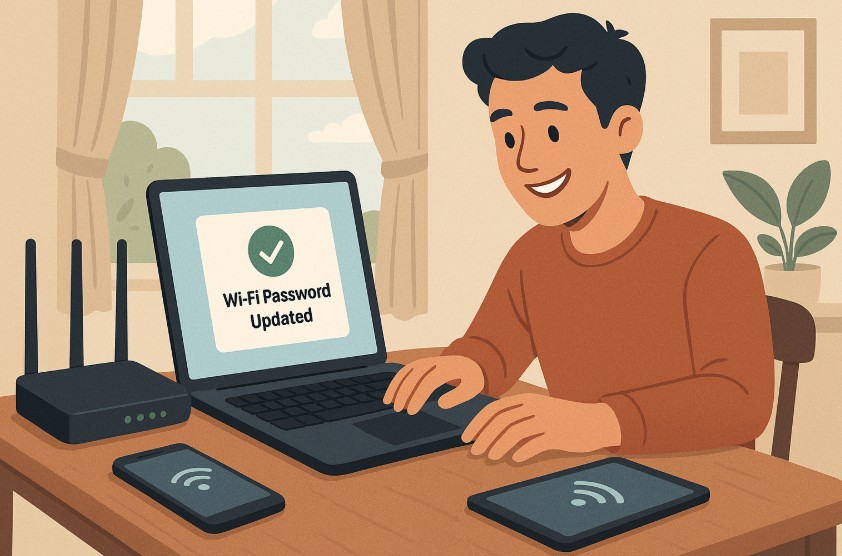
Have you ever noticed your internet slowing down for no reason? It could be because too many devices are connected to your WiFi network, some of which might not even be yours. One of the easiest and most effective ways to secure your internet and improve its performance is by changing your Du WiFi password.
Whether you’re a long-time Du user or recently got connected, keeping your network safe from unauthorized access is crucial in the digital age. In this guide, you’ll discover step-by-step instructions to change your Du WiFi password, how to log in to your router settings, what to do if you forget the login credentials, and how to boost your network speed.
It’s designed for users in the UAE who may not be tech-savvy but still want to control and secure their internet effectively. Let’s dive in and help you gain full control of your Du WiFi network.
Why Should You Change Your Du WiFi Password Regularly?
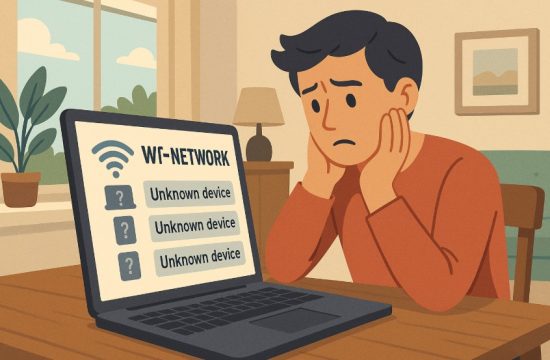
Changing your Du WiFi password may seem like a small task, but it plays a vital role in maintaining your network’s security and performance. Just like you wouldn’t leave your front door unlocked, you shouldn’t let your WiFi stay open to unauthorized users.
When too many devices connect to your network without your knowledge, your internet speed may drop significantly. This is especially important in the UAE where households often have multiple smart devices, from TVs and security cameras to smart assistants and gaming consoles.
If even one neighbor figures out your password, they could share it with others, creating a silent bandwidth leak you won’t even notice until your Netflix starts buffering.
Hackers also target networks with weak or unchanged passwords. If your default credentials are still active, you’re making it easy for someone to access your personal files or infect your devices with malware.
Updating your password regularly not only protects your data but also helps ensure that only the right people are connected to your home WiFi. It’s a small habit that delivers big protection.
How Do You Access Your Du Router Settings?
To change your Du WiFi password, the first step is to access your router’s admin panel. This is where all your WiFi settings, including the password, are controlled. If you’ve never done this before, don’t worry. It’s simpler than it sounds and only takes a few minutes.
What IP Address Should You Use for Du Routers?
Every Du router has a local IP address that you enter into your browser’s address bar to reach the login page.
The most commonly used ones are:
- 192.168.1.1
- 192.168.0.1
- 192.168.70.1
- 192.168.8.1
To find the correct IP, look at the sticker on the back or bottom of your router. Alternatively, you can view the “Default Gateway” under your device’s connected WiFi settings.
How Do You Find Your Router’s Login Credentials?
Once the IP is entered into your browser, you’ll be asked to log in. You need the router’s username and password, which are often found printed on the same sticker as the IP.
If you haven’t changed the login details, the default ones are usually:
| Router Brand | IP Address | Username | Password |
| Du Standard | 192.168.1.1 | admin | admin |
| D-Link | 192.168.0.1 | admin | admin |
| Huawei | 192.168.8.1 | admin | admin |
If your credentials don’t work, try other common combinations like “admin” for both fields or “admin” and “password”. In case you have changed the credentials previously and forgotten them, resetting the router to its factory settings is your next best option.
Accessing your router is the foundation to managing your WiFi securely. Let’s now move on to how you can change the password once you’re logged in.
What Are the Steps to Change Your Du WiFi Password?
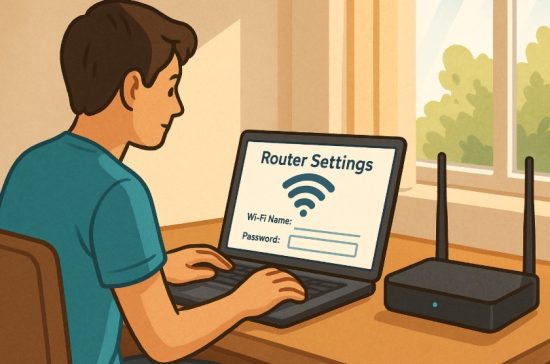
Once inside your router’s admin panel, changing the password is just a matter of navigating the right settings. Whether you’re using a standard Du router, D-Link, or Huawei, the process is similar. Let’s break it down into easy-to-follow steps.
How Do You Log in to Your Router?
- Connect your device (mobile or laptop) to your existing Du WiFi network.
- Open any browser and enter your router’s IP address (usually 192.168.1.1 or 192.168.0.1).
- You’ll land on a login page asking for a username and password.
- Use the default admin credentials unless you’ve changed them.
Where Can You Find Wifi Settings on the Admin Panel?
Once logged in:
- Click on the Settings or Advanced Settings tab at the top.
- Navigate to WiFi, Wireless, or Security settings.
- You’ll see multiple tabs if your router supports both 2.4GHz and 5GHz. Choose the one you want to modify.
How Do You Create a Strong, Secure New Password?
In the field labeled Pre-Shared Key, WiFi Key, or Password:
- Delete the existing password
- Enter a new password that is at least 12 characters long
- Use a mix of uppercase and lowercase letters
- Include numbers and special characters
- Avoid using common words or easily guessed combinations
Example: MyDuSecureNet2025!
After updating the password:
- Click Save or Apply.
- The router may restart to apply the new settings.
Here’s a quick summary table for Sunday users who might want to plan maintenance:
| Step | Time Needed |
| Login to router | 1 minute |
| Navigate to WiFi | 1 minute |
| Change password | 2 minutes |
| Restart router | 1 minute |
| Reconnect devices | 2-3 minutes |
Changing your password is simple, and doing it regularly adds a much-needed layer of digital protection to your home.
What Happens After You Change the Password?
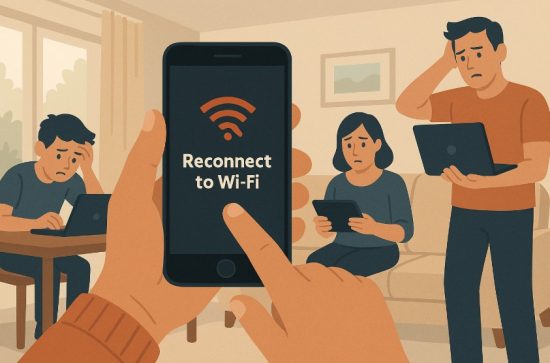
Once you’ve updated the Du WiFi password and saved the changes, the router will implement the new settings. At this point, all devices that were previously connected to the network using the old password will be automatically disconnected. To reconnect, you need to go into each device’s WiFi settings.
On mobile phones, laptops, smart TVs, and other devices:
- Forget the old network from the device memory.
- Search for available WiFi networks again.
- Select your network name (SSID) and enter the new password you just created.
If you’re using smart home devices like speakers or security cameras, don’t forget to update their network settings too. Some of these might require reconfiguration through their respective apps.
Once all your devices are reconnected, your network is now protected with the new password. Make sure to write it down or store it securely to avoid future access issues.
What If You Forget Your Router Login Details?
It happens more often than you’d think. If you forget your login details, you won’t be able to access your admin panel using the browser. In such cases, the only option is to reset your router to factory settings.
Here’s how?
- Locate the reset button on the back of your router. It’s usually a small pinhole.
- Use a paperclip or pin to press and hold the button for 10 to 15 seconds.
- Wait until all lights blink and the router restarts. This confirms the reset was successful.
- Once done, connect to the default network using the credentials printed on the back of the router.
- You can now log in with the default admin username and password and set a new WiFi password again.
Always note down your new login credentials after a reset to avoid repeating the process.
How Can You Improve Du WiFi Speed and Security?
A strong password helps, but there are additional steps to make your Du WiFi more secure and faster. Start by positioning your router correctly. Avoid placing it in enclosed spaces or near devices like microwave ovens or cordless phones. For best performance, place it near a window or open space.
To boost security and efficiency:
- Enable WPA2 or WPA3 encryption if your router supports it.
- Update your router firmware regularly to fix bugs and improve performance.
- Use a guest network for visitors, so they don’t have access to your main devices.
- Disconnect unused devices from your network.
These simple steps will help you enjoy a faster, safer internet experience across all your connected devices.
Common Du Router IP Addresses and Default Credentials
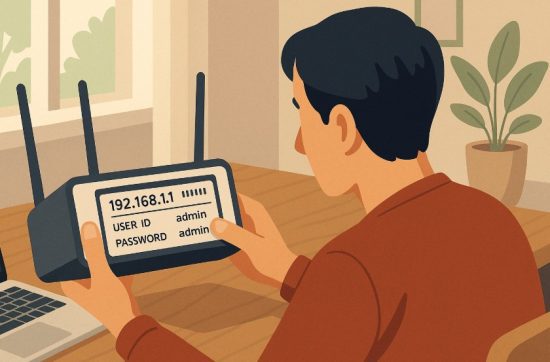
Different models may come with different default login credentials and IP addresses. Knowing these can save you time during setup or troubleshooting.
Here are the most commonly used ones:
| Router Model | IP Address | Username | Password | |
| Du Standard | 192.168.1.1 | admin | admin | |
| D-Link | 192.168.0.1 | admin | admin | |
| Huawei | 192.168.8.1 | admin | admin |
Make sure to check the sticker on your router for exact details. If the credentials don’t work, you may have changed them previously and will need to perform a factory reset to restore access. Knowing your router’s IP and default login credentials makes managing your network much easier.
Tips for Creating a Strong and Memorable WiFi Password
A strong password is essential, but it should also be something you can remember without writing down every time.
Here’s what makes a password strong:
- At least 12 characters long.
- Combines upper and lowercase letters.
- Includes numbers and special characters.
- Avoids personal information like birthdays or names.
Tips to make it memorable:
- Use phrases or quotes that are easy for you but hard to guess.
- Swap letters with symbols, like “A” with “@” or “S” with “$”.
- Create acronyms from favorite songs or movie lines.
Example: Th1$IsMyHomeN3tw0rk
The right balance of security and memorability ensures you won’t be locked out and keeps intruders out too.
Troubleshooting Tips for Du WiFi Issues After Password Change
After changing your password, some issues may arise, especially if the router didn’t save the settings correctly or if devices are stuck on the old credentials.
Here’s how to troubleshoot common problems:
- Devices can’t connect: Forget the network on the device and reconnect using the new password.
- Router not applying changes: Restart the router manually after saving settings.
- Slow connection: Ensure the router isn’t placed near interference sources and is in an open area.
- Still can’t access admin panel: Check if the IP address is correct or try a different browser.
Always check that the WiFi and Internet lights on your router are solid blue. If all else fails, consider calling Du support at 155.
Conclusion
Changing your Du WiFi password is more than just a security practice. It’s a smart way to protect your network, manage who connects to it, and boost your internet’s performance. Whether you’re dealing with slow speeds, unauthorized access, or setting up a new connection, updating your password gives you control over your home network.
With the clear steps and tips provided, you can easily log in to your router, update your password, and troubleshoot common issues. Remember to keep your password strong, change it regularly, and revisit your settings to ensure optimal performance. Take charge of your WiFi today and enjoy secure, uninterrupted browsing every time.
FAQs
Can I change my Du WiFi password using my mobile phone?
Yes, you can use your mobile browser to access the router settings and change the password if connected to the WiFi.
What if I forget the new password I set?
You will need to reset the router to factory settings and reconnect using the default credentials printed on the device.
How often should I change my Du WiFi password?
Ideally, every 3 to 6 months or whenever you suspect someone else is using your network.
Why do my devices disconnect after I change the password?
Changing the password invalidates the old one, so devices need to be reconnected using the new credentials.
What’s the difference between 2.4GHz and 5GHz WiFi bands?
2.4GHz offers better range, while 5GHz delivers faster speeds but works best in closer proximity.
Can I have different passwords for 2.4GHz and 5GHz networks?
Yes, most dual-band routers allow you to set separate passwords for each band if needed.
How do I know which IP address to use for my Du router?
Check the back of your router or your device’s connected WiFi settings to find the correct IP address.