Last Updated On – 02-09-2026
If you want to open your router settings, change your WiFi password, or fix a connection issue, 192.168.70.1 is often the address you need. Many Du routers in the UAE use 192.168.70.1 as their local admin page.
You simply connect to the same WiFi network, type http://192.168.70.1 into your browser, and log in using the username and password printed on the router label. If the page does not open, your router may use another address, such as 192.168.8.1 or 192.168.1.1 instead.
What Is 192.168.70.1, and Why Do Some Du Routers Use It?
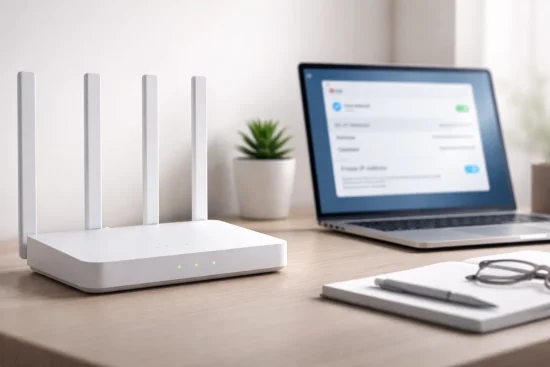
192.168.70.1 is a private IP address that some Du and ZLT routers use as their default gateway. It is not a public website and cannot be opened from mobile data or from outside your network.
Instead, it acts as the doorway to your router settings, allowing you to manage WiFi, security, connected devices, and internet preferences.
When you type this address into a browser, the router opens its admin page.
From there, you can:
- Change the WiFi network name
- Create a new WiFi password
- Update the admin password
- Restart or reset the router
- View which devices are connected
Some routers from Du use 192.168.70.1 because of the model and firmware installed. Other Du routers may instead use 192.168.8.1, 192.168.1.1, or 192.168.0.1. The address printed on the router or shown as your Default Gateway is always the correct one to use.
How Do You Open the 192.168.70.1 Login Page Correctly?
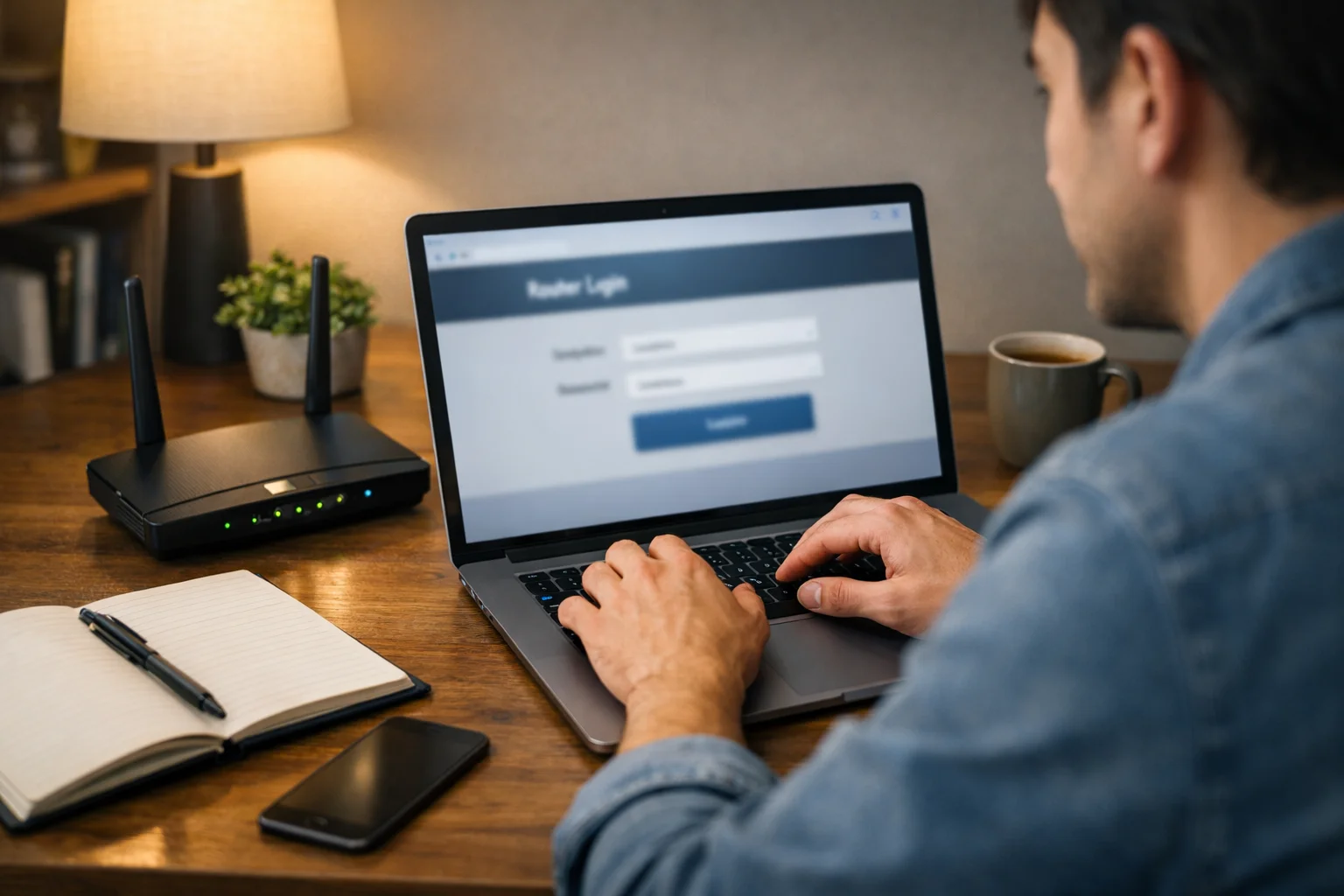
To open the login page, your phone, laptop, or computer must first be connected to the same router. You can connect using WiFi or an Ethernet cable. A wired connection is often better because your connection will not drop while you save new settings.
Open Chrome, Safari, Edge, or any other browser. In the address bar at the top, type:
http://192.168.70.1
Then press Enter. If your router uses secure access, try:
https://192.168.70.1
Many people accidentally type the address into Google search instead of the browser address bar. That causes search results to appear instead of the router login page. Another common mistake is typing 192.168.l.70.1 with the letter “l” instead of the number “1”.
To log in correctly:
- Connect to the router network
- Type the address into the browser bar
- Enter the username and password
- Press Login
- Wait for the router dashboard to load
Most users can then open the WiFi settings, connected devices page, or security options. If the page still does not appear, there may be a different router address configured on your network.
Why Is 192.168.70.1 Not Working on Your Device?
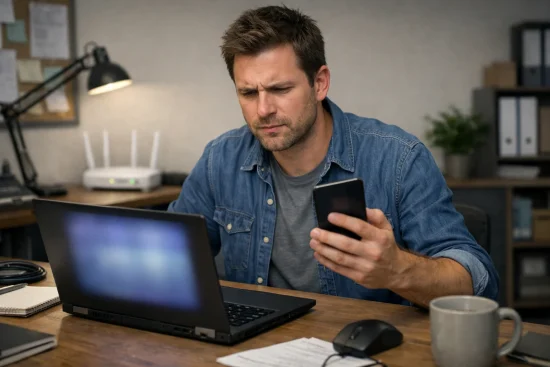
It can be frustrating when the router page does not open, especially when you need to change a password quickly. In most cases, the issue is simple.
Either your device is not connected to the same network, the address is typed incorrectly, or your router uses another gateway. Before resetting anything, check the following common causes.
Common Reasons the Router Login Page Fails to Open
The most common reason is that your device is not connected to the same WiFi network as the router. If you are using mobile data, the page will never load because 192.168.70.1 only works inside your local network.
You may also see an error because of a small typing mistake.
Common mistakes include:
- Typing 192.168.l.70.1
- Missing one of the dots
- Adding spaces
- Entering the address in the search box
Sometimes your browser or network settings can also block access. VPN services, company firewalls, proxy tools, and browser extensions may prevent local addresses from opening. Try using a private browser window or turning off your VPN temporarily.
If the page keeps loading without opening, restart the router and wait one minute before trying again. A different browser may also help.
Alternative Router IP Addresses Used by Du
Not every Du router uses 192.168.70.1. Some models use different addresses depending on the firmware and router brand.
For example, many ZLT routers use 192.168.70.1, while Nokia and other Du devices often use 192.168.1.1. Some D-Link routers use 192.168.0.1.
Router Type Common Login IP
ZLT Home Wireless 5G 192.168.70.1
Nokia Gateway 192.168.1.1
D-Link DWR-M960 192.168.0.1
Some Du firmware versions 192.168.8.1
If the address on the sticker is different from what your phone or laptop shows, trust the device. The active gateway shown on your connected device reflects the router’s current settings.
How to Find the Correct Router Gateway?
If 192.168.70.1 still does not work, the best solution is to find your actual gateway address. This only takes a few seconds.
On Windows:
- Open Command Prompt
- Type ipconfig
- Look for “Default Gateway”
On Mac:
- Open System Settings
- Select Network
- Choose your active connection
- Check the Router field
On Android or iPhone:
- Open WiFi settings
- Tap your connected network
- Look for Gateway or Router
The number shown there is the exact address you should open in your browser. Many people discover that their router actually uses 192.168.8.1 or 192.168.1.1 instead.
One small office in Dubai struggled with slow internet and repeated login errors. After checking the gateway on a Windows laptop, they realized the network was using 192.168.8.1 instead of 192.168.70.1.
They updated the WiFi settings, changed the crowded channel, and the connection improved within minutes.
What Username and Password Should You Use for 192.168.70.1 Login?
After you open the 192.168.70.1 login page, the next step is to enter the correct admin username and password.
Most Du routers and other home routers use default login credentials that are already set by the manufacturer. In many cases, you can find these details on a sticker attached to the back or bottom of the router.
The most common default username is admin, although some Du Home Wireless 5G routers may use user instead. The password may be a simple default value or a unique code printed on the router label.
Username Password Commonly Used On
admin admin Standard router models
admin password Older Du and ZLT routers
admin 1234 Some ZLT and generic routers
admin Leave blank Routers with no preset password
user Printed on router label Du Home Wireless 5G routers
admin Printed on router label Routers with custom credentials
If the login details above do not work, your router password may have been changed in the past. Before resetting the device, check whether the correct login was saved in your notes, browser, password manager, or mobile app.
You should also look carefully at the sticker on the router because the printed details are usually more accurate than general default combinations. If you still cannot log in, a factory reset may be necessary to restore the original username and password.
How Can You Change Your Du WiFi Name and Password Through 192.168.70.1?
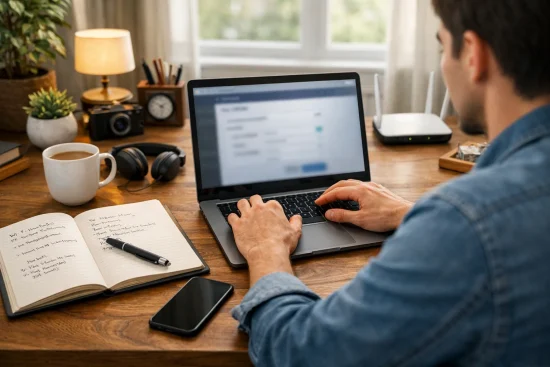
After you log in successfully, you can update your WiFi name and password from the router dashboard. This is useful if your current password is too weak, if too many unknown devices are connected, or if you simply want a name that is easier to recognise.
Wireless Settings Menu
Most Du routers keep the WiFi settings under a menu called Wireless, WiFi Settings, or WLAN. Once you open this section, you may see separate pages for 2.4GHz and 5GHz networks. If your router supports both, you need to update each one separately.
For many ZLT routers, the path looks like this:
- WiFi Settings
- WiFi 2.4G Settings
- WiFi 5G Settings
The network name usually appears under SSID or Network Name. The password field may appear as WPA Key, Pre Shared Key, or WiFi Password.
Creating a Strong WiFi Name and Password
Your new WiFi name should be simple and easy to recognise. Avoid using your flat number, full address, or family name because that can make your network easier to identify.
For the password, use at least 12 characters. Include:
- Uppercase letters
- Lowercase letters
- Numbers
- One special character
Choose WPA2 or WPA3 security if your router supports it. Avoid older settings such as WEP because they are much less secure.
A useful example is a password such as DubaiHome2026! because it is easier to remember but still stronger than common passwords like 12345678.
Saving and Reconnecting Devices
After entering the new details, click Save or Apply. The router may take a few seconds to restart the wireless network. During this time, all phones, laptops, TVs, and other connected devices will disconnect.
Once the router finishes restarting:
- Select the new WiFi name
- Enter the new password
- Reconnect each device
If you changed both 2.4GHz and 5GHz settings, make sure you reconnect to the correct network. Some people prefer using the same password on both bands because it is easier to remember.
If your device does not reconnect automatically, forget the old network and connect again manually. This solves most connection issues after a password change.
How Can You Secure Your Router After Logging In?
Changing the WiFi password is only the first step. You should also secure the router itself. Many users leave the default admin password unchanged, which means anyone connected to the network could open the settings page.
After logging in, make these changes:
- Replace the default admin password with a stronger one
- Update the router firmware if an update is available
- Disable WPS if you do not use it
- Create a guest network for visitors
Firmware updates improve stability and often fix known security problems. Most routers include a Firmware Update page inside the settings menu.
Guest networks are useful because they keep visitor devices separate from your main computers and phones. This is especially helpful in offices or homes with many smart devices.
When Should You Reset the Router and What Happens Afterwards?
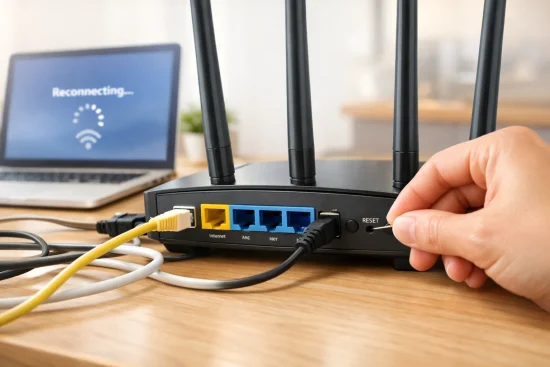
You should reset the router only when the login details no longer work or when the router settings become corrupted. A factory reset returns the router to its original state. That means all WiFi names, passwords, and custom settings are removed.
To reset the router:
- Keep the router powered on
- Find the small Reset button
- Press and hold it for 10 to 15 seconds
- Wait for the lights to blink
After the router restarts, use the default WiFi name and login credentials printed on the router sticker. Then log in again and create a new WiFi password.
Resetting should be your last option because it takes time to reconnect all your devices. However, it is often the fastest way to recover access if you forgot the admin password.
What Are the Most Common Questions About 192.168.70.1 in the UAE?
Many users in the UAE ask the same questions when the router page does not open or when they are unsure which address to use. The most important thing to remember is that 192.168.70.1 only works while connected to the same router. It cannot be opened from mobile data or from another location.
Another common concern is whether 192.168.70.1 and 192.168.1.1 are the same. They are not. Both are private router addresses, but different router models use different numbers.
Users also ask whether it is safe to continue if an HTTPS warning appears. In most cases, local router pages use self-signed certificates, so the warning is normal if you are opening your own home router.
The most important reminders are:
- Always connect to the same WiFi network first
- Type the IP into the browser address bar
- Use the router sticker for login details
- Check the Default Gateway if the page does not open
By following these steps, most users can solve the issue in just a few minutes.
Conclusion
192.168.70.1 is a useful router login address for many Du users in the UAE. It gives you access to your WiFi name, password, connected devices, and router security settings.
In most cases, you only need to connect to your router, type the address correctly, and use the login details printed on the device.
If the page does not work, do not panic. Many routers use 192.168.8.1 or 192.168.1.1 instead. Checking the Default Gateway on your phone or computer usually solves the problem quickly.
Once you log in, take a few extra minutes to create a stronger password and update the router settings for better security and more reliable internet.
FAQ
Can you open 192.168.70.1 from mobile data?
No. You must be connected to the same WiFi network or Ethernet connection as the router.
Why does 192.168.70.1 say “This site can’t be reached”?
This usually means you typed the wrong address or your router uses a different gateway such as 192.168.8.1.
Is 192.168.70.1 the same as 192.168.1.1?
No. They are different private router addresses used by different router models and firmware versions.
What is the default password for a Du router?
Many Du routers use admin as both the username and password, but some use a custom password printed on the sticker.
Can you change your WiFi password from a phone?
Yes. As long as your phone is connected to the router network, you can open the admin page and update the settings.
Why does the router ask for a new admin password after a reset?
After a factory reset, some routers require you to create a new admin password before you can continue. This improves security.
Is it safe to continue after an HTTPS warning appears?
Yes, if you are opening your own router on your home network. Many router pages use a self signed certificate.